Build Your Brand in Minutes: The Best AI Logo Generators

The 10-Minute Logo Method
Look, if you're a small business owner who can't tell Photoshop from PowerPoint, here's your way out:
- Pick 1 AI logo generator
- Enter your business name
- Choose 3 style preferences
- Select your industry
- Generate options
- Customize font + color
- Export vector files
Done.
You don't need:
- Photoshop
- Illustrator
- A design degree
- A branding agency
You need clarity.
That's it.
What You Must Decide Before Using Any Tool
Here's the thing: AI tools are powerful. But they're not mind readers.
Before opening any logo generator, answer these 5 questions:
- What is my business name exactly (spelling + capitalization)?
- Do I want just text (wordmark) or text + icon?
- What industry am I in?
- Do I want modern, classic, bold, minimal, playful, or premium?
- What 1 to 2 colors represent my brand?
If you can't answer these, your results will look random. Trust me on this.
The 5-Minute Brand Clarity Prompt
Still stuck? Copy this into ChatGPT or any AI assistant:
"My business name is ____. I operate in the ____ industry. My target customers are ____. I want my brand to feel ____ (modern, premium, bold, friendly, etc). Suggest 3 logo style directions and 3 color combinations."This gives you immediate clarity before generating logos. Think of it like knowing what you want before walking into a restaurant instead of staring at the menu for 20 minutes.
Now Let's Talk Tools
From this point forward, this ebook becomes practical.
We will:
- Show you the best paid AI logo generators
- Show you free alternatives
- Show you open-source options
- Explain exactly how to access them
- Explain what you get
- Show you when to use each
No fluff.
Paid AI Logo Generators (Premium & All-in-One Tools)
These tools are built for one type of person:
Small business owners who want:
- Fast results
- Professional polish
- Brand kits included
- No technical stress
You generate, customize, pay, download high-quality files.
Let's break them down properly.
1. Looka
Access: https://looka.com/
What It Does
Looka is one of the most complete AI logo generators. It doesn't just create logos, it builds full brand kits.
Who It's Best For
- Serious small businesses
- Founders who want a professional look fast
- People willing to pay for quality files
How to Start (Step-by-Step)
- Go to the website
- Enter your business name
- Choose your industry
- Select logo styles you like
- Pick colors
- Generate options
- Customize fonts, spacing, icon size
What You Get
Depending on the package:
- PNG files
- SVG files (vector)
- EPS files
- Social media assets
- Brand guidelines
- Business card designs
Pricing
- You design for free
- You pay only to download
- Brand kits cost more than logo-only packages
Pros
- Very polished results
- Clean, modern typography
- Full brand kit available
- Easy customization
Cons
- Not fully free
- Some designs feel template-based
Real Recommendation
If you want the most "agency-like" result without hiring a designer, Looka is one of the safest choices.
2. LogoAI
Access: https://www.logoai.com/
What It Does
LogoAI focuses heavily on AI-driven layout and typography adjustments.
Who It's Best For
- Founders who want modern startup-style branding
- Tech, SaaS, and online businesses
How to Start
- Enter business name
- Add slogan (optional)
- Select industry
- Choose preferred styles
- Generate logos
- Edit spacing, font weight, icon position
What You Get
- High-res PNG
- Vector files
- Transparent background
- Social media assets
Pricing
Design free. Pay to download.
Pros
- Clean startup vibe
- Good icon-to-text balance
- Fast generation
Cons
- Less deep brand kit compared to Looka
- Limited free download
Real Recommendation
Strong for digital-first businesses.
3. Tailor Brands
Access: https://www.tailorbrands.com/
What It Does
Tailor Brands is more than a logo maker. It's a business branding platform.
Who It's Best For
- New business owners
- Entrepreneurs who want branding + LLC services (in some countries)
What You Get
- Logo
- Brand kit
- Social assets
- Website builder option
Pricing
Subscription-based in many cases.
Pros
- Business tools included
- Structured branding process
- Strong beginner guidance
Cons
- Subscription model
- Can feel upsell-heavy
Real Recommendation
Best for complete beginners starting from zero.
4. Brandmark
Access: https://brandmark.io/
What It Does
Brandmark focuses on minimal, modern, tech-style logos.
Best For
- Tech startups
- Consultants
- Online brands
Strength
Clean, geometric aesthetics.
5. Wix Logo Maker
Access: https://www.wix.com/logo/maker
Best For
- Businesses already using Wix
- People who want logo + website alignment
Strong integration advantage.
6. Fiverr Logo Maker
Access: https://www.fiverr.com/logo-maker
Hybrid system: AI + human designer upgrade option.
Good if you might later hire a designer.
7. Designs.ai
Access: https://designs.ai/
More of a full AI creative suite.
Good for:
- Logos
- Videos
- Mockups
- Social content
Quick Summary (Paid Tools)
If you want:
- Most polished → Looka
- Tech/startup vibe → LogoAI
- Business starter bundle → Tailor Brands
- Minimalist style → Brandmark
- Website integration → Wix
- AI + designer upgrade → Fiverr
- Full AI creative suite → Designs.ai
Chapter 3: Free AI Logo Generators (Best Free Options)
Important clarification:
Most "free" logo generators let you design for free, but charge you to download high-resolution or vector files.
Some are truly free. Some are partially free.
Let's break them down properly.
1. Canva AI Logo Generator
Access: https://www.canva.com/
What It Does
Canva combines templates + AI assistance. You can generate logo ideas and then fully edit them.
Who It's Best For
- Beginners
- Social media businesses
- Personal brands
- Budget-conscious founders
What's Free
- Design is free
- Download PNG (low to medium resolution)
- Transparent background (Pro feature in many cases)
- Huge template library
What Requires Pro
- SVG (vector file)
- Advanced brand kit
- Background remover
Why It's Powerful
You get full manual control. Unlike some AI-only tools, you can:
- Change fonts
- Adjust spacing
- Replace icons
- Edit layout completely
Real Recommendation
If you want flexibility + affordability, Canva is one of the safest free starting points.
2. Shopify Hatchful
Access: https://www.shopify.com/tools/logo-maker
What It Does
Hatchful is Shopify's free logo generator.
Who It's Best For
- E-commerce stores
- Dropshipping beginners
- Online shops
What's Free
- 100% free downloads
- PNG files
- Social media sizes included
Limitations
- No SVG files
- Limited customization
- Designs can feel generic
Real Recommendation
If you need something quick and totally free, this works. But it's not ideal for premium branding.
3. Logo.com
Access: https://logo.com/
What It Does
Logo.com offers AI-generated logos with free download options.
What's Free
- Free logo download
- PNG format
- Basic brand assets
What's Paid
- Advanced files
- Premium customization
Good For
- Micro businesses
- Personal projects
- Side hustles
4. Namecheap Logo Maker
Access: https://www.namecheap.com/logo-maker/
What It Does
A surprisingly good free logo generator.
What's Free
- High-resolution PNG
- SVG file
- Completely free download
Yes, including vector files.
Limitations
- Less polished style options
- Limited customization
Real Recommendation
One of the best truly free options available.
5. Zyro Logo Maker
Access: https://zyro.com/tools/logo-maker
What It Does
Simple drag-and-drop logo builder.
What's Free
- PNG downloads
- Basic editing
Limitations
- No AI sophistication
- Feels more like icon placement tool
Best For
Ultra-simple logos.
Free Tools: Honest Comparison
If you want:
- Most flexibility → Canva
- Completely free + SVG → Namecheap
- Fast + e-commerce → Hatchful
- Clean but basic → Logo.com
- Very simple editor → Zyro
Important:
Free tools are great for starting. But if you want:
- Full vector control
- Brand kits
- Print-ready assets
- Professional mockups
You may need a paid solution.
Chapter 4: Open-Source & DIY AI Logo Tools (Advanced but Free)
These tools are different.
They don't give you a polished "generate → download" experience.
They give you:
- Raw AI image generation
- Full editing control
- Complete freedom
- No subscription lock
But they require more effort.
Let's break them down.
1. Stable Diffusion
Official: https://stability.ai/
Web-based option: https://playgroundai.com/
What It Is
Stable Diffusion is an open-source AI image generation model.
It creates images from text prompts.
Why It's Useful for Logos
You can generate:
- Icon concepts
- Minimalist symbol ideas
- Abstract brand marks
- Monograms
Example Prompt
Minimalist vector logo for a modern fintech startup,
clean geometric symbol, flat design,
black and white, simple lines,
no gradients, no shadows, white background
Important
Stable Diffusion generates raster images (PNG, JPG). You will need to convert to vector later.
Who It's Best For
- Technical founders
- Designers
- People comfortable experimenting
2. AUTOMATIC1111
GitHub: https://github.com/AUTOMATIC1111/stable-diffusion-webui
What It Is
A popular interface for running Stable Diffusion locally on your computer.
Why It's Powerful
- Full model control
- Custom checkpoints
- Negative prompts
- Image-to-image refinement
Reality Check
Requires:
- GPU
- Installation steps
- Basic technical knowledge
Not for beginners.
3. Leonardo AI
Access: https://leonardo.ai/
What It Is
Web-based AI image generator built on Stable Diffusion-like models.
Why It's Good for Logos
- Cleaner interface
- Free credits
- Easy prompt refinement
- Multiple style presets
Best For
- Semi-technical users
- Founders who want custom icon concepts
4. Inkscape
Access: https://inkscape.org/
What It Is
Free, open-source alternative to Adobe Illustrator.
Why It's Critical
If you generate an AI logo image, you must convert it to vector.
Inkscape allows you to:
- Trace bitmap → convert to SVG
- Edit paths
- Adjust shapes
- Export clean vector files
Who Should Use It
- Anyone using Stable Diffusion
- Anyone who wants SVG control
5. GIMP
Access: https://www.gimp.org/
What It Is
Free Photoshop alternative.
Use Case
- Cleaning backgrounds
- Adjusting contrast
- Removing artifacts
- Refining AI-generated images
Not for vector editing, use Inkscape for that.
6. Figma (Free Plan)
Access: https://figma.com/
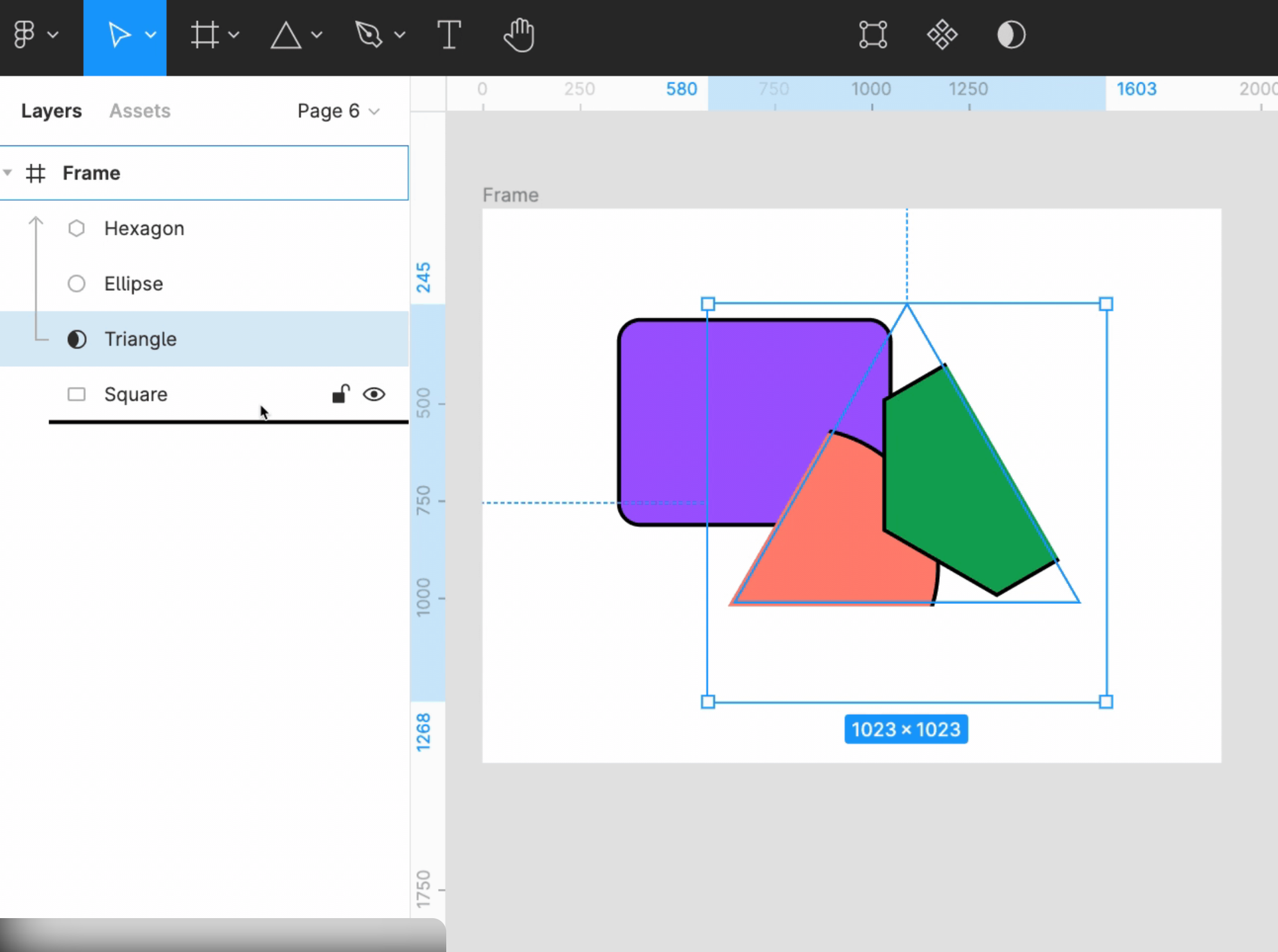
Why It's Important
Even on free plan, Figma is powerful.
You can:
- Rebuild AI-generated concepts as clean vectors
- Adjust typography
- Create brand kits
- Export SVG
Best For
- Founders who want control without heavy software installation
Open-Source Workflow (Simple Version)
If you want maximum control:
- Generate icon concept with Stable Diffusion or Leonardo AI
- Clean image in GIMP (optional)
- Convert to vector in Inkscape
- Refine typography in Figma
- Export SVG + PNG
This path costs $0.
But it costs time.
When to Use Open-Source Instead of Paid AI
Use open-source if:
- You want unique icon concepts
- You are comfortable experimenting
- Budget is zero
- You enjoy creative control
Use paid tools if:
- You want speed
- You want brand kits included
- You don't want technical steps
Step-by-Step Workflow (From Zero to Final Logo)
There are 3 clear paths:
- Option A — Fastest & Easiest (Paid Tool)
- Option B — 100% Free (Simple Tools)
- Option C — Open-Source & Full Control
Choose based on your budget and comfort level.
OPTION A: The Easiest Path (Paid Tool)
Best for:
- Non-technical founders
- Busy small business owners
- People who want professional results fast
Recommended tools:
- Looka (https://looka.com/)
- LogoAI (https://www.logoai.com/)
- Tailor Brands (https://www.tailorbrands.com/)
Step 1: Prepare Your Inputs
Before generating:
- Business name (exact spelling)
- Optional slogan
- Industry
- 1 to 2 color preferences
- Style preference (modern, bold, minimal, premium)
Step 2: Generate Multiple Versions
Do NOT pick the first logo.
Generate:
- At least 10 variations
- Try different style directions
- Try with and without icon
Step 3: Customize Properly
Adjust:
- Font weight
- Spacing between letters
- Icon size
- Alignment
- Color balance
Most people skip customization.
That's why their logos look generic.
Step 4: Download the Right Files
You must download:
- SVG (vector file)
- High-resolution PNG
- Transparent background version
If SVG is not included, reconsider.
Step 5: Test Your Logo
Check it:
- On white background
- On black background
- In small size (favicon size)
- As social profile picture
If it breaks visually, refine it.
OPTION B: 100% Free Path
Best for:
- $0 budget
- Beginners
- Side hustles
Recommended tools:
- Canva (https://www.canva.com/)
- Namecheap Logo Maker (https://www.namecheap.com/logo-maker/)
- Shopify Hatchful (https://www.shopify.com/tools/logo-maker)
Step 1: Generate Initial Logo
Use Namecheap or Hatchful for quick concept.
Step 2: Refine in Canva
Import the logo into Canva.
Now:
- Adjust font
- Improve spacing
- Fix color contrast
- Simplify layout
Canva gives more manual control than most free tools.
Step 3: Export Correctly
If using free Canva:
- Export highest quality PNG
- Transparent background (if available)
If you need SVG and it's not available, consider upgrading or using open-source tools.
OPTION C: Open-Source Path (Advanced)
Best for:
- Technical founders
- Designers
- People who want custom icon concepts
Tools:
- Leonardo AI (https://leonardo.ai/)
- Inkscape (https://inkscape.org/)
- Figma (https://figma.com/)
Step 1: Generate Icon Concept
Use Leonardo AI with this prompt:
Minimalist flat vector logo icon,
clean geometric shape,
black and white,
no gradients, no shadows,
white background,
scalable, simple lines
Generate multiple variations.
Step 2: Convert to Vector
Open in Inkscape.
Use: Path → Trace Bitmap
Convert to SVG.
Clean nodes if necessary.
Step 3: Add Typography in Figma
Import SVG.
Add:
- Clean sans-serif font
- Proper spacing
- Balanced alignment
Export:
- SVG
- PNG
- 1024px high-resolution version
File Types You MUST Understand
- PNG → Good for web
- SVG → Scalable vector (critical)
- EPS → Print-ready
- JPG → Avoid for logos
- PDF → Useful for printing
If your logo is only JPG, it is incomplete.
Raster vs Vector (Important)
Raster (PNG/JPG):
- Pixel-based
- Blurry when enlarged
Vector (SVG/EPS):
- Infinite scalability
- Professional standard
Always prioritize vector.
Final Checklist Before You Finish
- Looks good small
- Works in black & white
- Has SVG version
- Clean spacing
- Balanced proportions
If all are checked, you're done.
Comparing All Tools (Decision Guide)
By now, you've seen:
- Paid tools
- Free tools
- Open-source tools
Now the question is:
Which one should YOU actually use?
Let's break it down by situation.
Best Overall (Balanced Quality + Ease)
Looka
Access: https://looka.com/
Why it wins overall:
- Professional output
- Brand kit included
- Strong typography
- Beginner-friendly
- Scalable files
If you want the safest "no-regret" choice, this is it.
Best Free (Truly Free with SVG)
Namecheap Logo Maker
Access: https://www.namecheap.com/logo-maker/
Why it wins free category:
- Free download
- Includes SVG
- No payment required
- Simple process
For zero budget founders, this is powerful.
Best for E-Commerce
Shopify Hatchful
Access: https://www.shopify.com/tools/logo-maker/
Designed specifically with online stores in mind.
If you're building:
- Dropshipping brand
- Shopify store
- Online boutique
This integrates smoothly.
Best for Tech / Startup Look
LogoAI
Access: https://www.logoai.com/
Strong geometric, modern aesthetic.
Good for:
- SaaS
- Fintech
- Online services
- Consultants
Best Full Branding Platform
Tailor Brands
Access: https://www.tailorbrands.com/
If you want:
- Logo
- Business cards
- Website
- Legal business tools (in some countries)
This is more than just a logo generator.
Best for Creative Control (Open-Source)
Leonardo AI
Access: https://leonardo.ai/
Paired with:
- Inkscape
- Figma
This combo gives maximum control.
Best for:
- Technical founders
- Designers
- People who want custom symbol concepts
Fastest Setup (Under 10 Minutes)
Canva
Access: https://www.canva.com/
Fast editing. Huge template control. Simple export.
Quick Comparison Table
| Situation | Best Tool |
|---|---|
| Best overall quality | Looka |
| 100% free + SVG | Namecheap |
| E-commerce stores | Shopify Hatchful |
| Tech / startup vibe | LogoAI |
| Full branding suite | Tailor Brands |
| Creative + open-source | Leonardo + Inkscape |
| Fast & flexible editing | Canva |
How to Decide in 30 Seconds
If:
- You have budget → Looka
- You have no budget → Namecheap
- You want flexibility → Canva
- You want custom icon concept → Leonardo AI
Simple.